ONE DRIVE
OPTIMUS uses ONE DRIVE for storage and exchange of data or files that can be input for a automation process. Or output or results of the automation process.
Typically in an enterprise context, this data for ONE DRIVE will be part of a Microsoft TEAMS site.
Access to the data is controlled by TEAMS. And the data is synced to the RPA VM via the ONE DRIVE client.
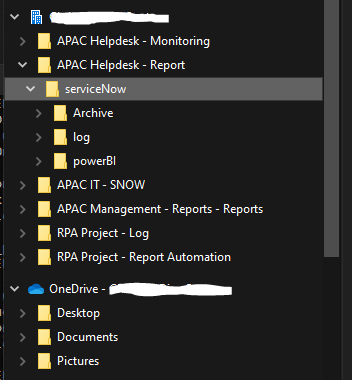
ONE DRIVE folders synced to the desktop as seen in windows explorer. ONE DRIVE Enterprise and ONE DRIVE Personal folders are shown in the example.
TIPS
Managing Storage Space
Typically, the storage on the VM is limited. And when running an regular daiy automation script downloading data, significant storage space will be used up over time and requires housekeeping.
Storage space on the local VM can be freed up by removing from the files on the local VM but keeping the backup on the ONE DRIVE cloud as follows:
Open Settings from ONE DRIVE on the windows taskbar
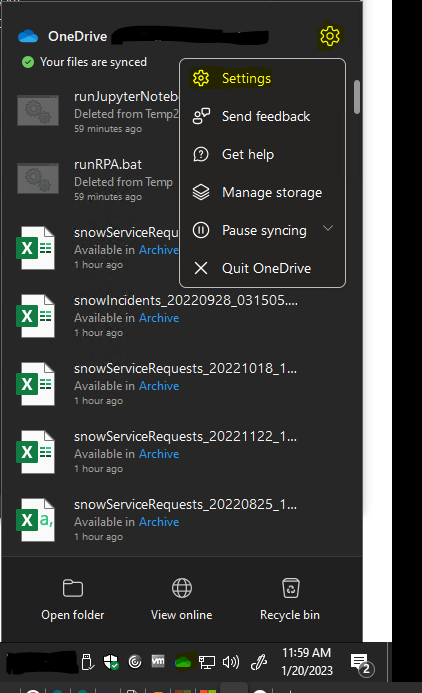
Select Choose Folders to manage which folders to sync/view on local VM
Select Manage Storage to view and manage storage of ONE DRIVE space
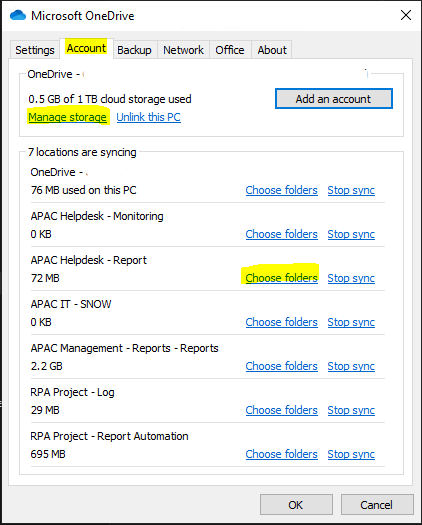
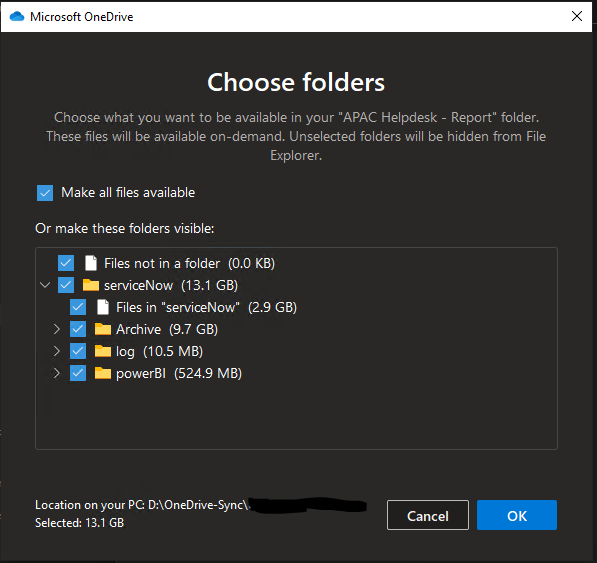
From Choose Folders - select which folders to view on local VM.
De-selecting the folder removes all local files stored on the VM but keeps the files on ONE DRIVE cloud.
New Update -
Using Files On-Demand feature
To delete a file from your local disk but keep it in OneDrive online, you can use the Files On-Demand feature. Here’s how you can do it:
- Open OneDrive Settings:
- Click on the OneDrive cloud icon in your taskbar.
-
Select More (three dots) and then Settings.
-
Enable Files On-Demand:
- Go to the Settings tab.
-
Check the box for Save space and download files as you use them.
-
Free Up Space:
- Open your OneDrive folder in File Explorer.
- Right-click on the file or folder you want to remove from your local disk.
- Select Free up space. This will remove the file from your local disk but keep it available online in OneDrive.
This way, the file will still be accessible online, and you can download it again whenever you need it 1 2.
Change location of folders from C Drive to other drive e.g. D Drive
You can completely move the Users, Program or other folders to another disk, and on the main disk, create an Junction NTFS link to it.
Most programs will still work as if the folder still exists on the main disk.
E.g. Moving the Users folder steps:
How to move users directory to another disk
1. Enter into Safe Mode with Command Prompt (press the restart button while holding Shift).
2. Go to the C:\
C:
3. Create a full copy of the Users folder to another disk:
robocopy C:\Users D:\Users /E /COPYALL /SJ /SL /DCOPY:DATE /R:3 /W:5
4. Create a Junction link C:\UsersNew => D:\Users
mklink /J C:\UsersNew D:\Users
5. Rename the folder C:\Users => C:\UsersOld
ren Users UsersOld
6. Rename the folder C:\UsersNew => C:\Users
ren UsersNew Users
7. Restart the computer
This method of moving the folder should provide maximum protection against any unexpected issues.
Rebuild the Search Index
To reduce the size of the Windows Search index file (Windows.edb), you can follow these steps:
Rebuilding the search index will delete the old index file and create a new one, which can help reduce its size.
1. Open Indexing Options:
- Press Win + S and type "Indexing Options".
- Click on Indexing Options.
2. Advanced Options:
- Click on the Advanced button.
- In the Advanced Options window, click Rebuild under the Troubleshooting section.
References
Add and Sync Shared Folders to OneDrive
Save disk space with OneDrive files on demand for windows
Change location of OneDrive folder
Sync 2 OneDrive Accounts on One Computer
Save space by enabling OneDrive files on demand. Default enabled for all new OneDrive sync clients.
Space saving tips in Windows 10
Automatically free up hard drive space with the Disk Cleanup tool on Windows 10
Use Disk Cleanup - "cleanmgr /sageset:11" - setup a clean up setting for scheduling.
To check and analyze space in disk for further optimization, can use WizTree - a very fast disk scan and analyzer:
Delete a user profile in Windows
Troubleshoot syncing issues
Stuck on "Sync pending" status
Experiencing issue with OneDrive where the sync status is stuck on "sync pending." A few steps you can try to resolve this issue:
- Check your internet connection: Ensure you have a stable internet connection. Sometimes, sync issues can be caused by intermittent connectivity.
- Restart OneDrive: Close OneDrive completely and then reopen it. This can sometimes resolve sync issues.
- Check for updates: Make sure you have the latest version of OneDrive installed. Updates often include fixes for common issues.
- Clear the cache: Clearing the OneDrive cache can help resolve sync problems. You can do this by navigating to the OneDrive settings and selecting the option to clear the cache.
- Close OneDrive: Right-click the OneDrive icon in the system tray (near the clock) and select "Close OneDrive."
- Run the reset command: Press Win + R to open the Run dialog, then type cmd and press Enter to open Command Prompt. In the Command Prompt window, type the following command and press Enter: %localappdata%\Microsoft\OneDrive\onedrive.exe /reset
- Restart OneDrive: After the reset process completes, restart OneDrive by searching for it in the Start menu and opening the app.
- Check file names and paths: Ensure that the files you're trying to sync don't have any special characters or long file paths, as these can sometimes cause sync issues.
- Re-link your account: Sometimes, unlinking and then re-linking your OneDrive account can resolve sync issues. You can do this through the OneDrive settings.
- Check for conflicts: Look for any files that might have sync conflicts. These are usually marked with a red X or a warning icon. Resolve these conflicts to continue syncing.
If none of these steps work, you might want to consider reaching out to Microsoft Support for further assistance.